migrate wordpress blog · Oct 19, 2026
How to Migrate WordPress Blog Safely: A 2026 Guide
The move usually starts with a small frustration: the WordPress admin feels slow, another plugin needs attention, or the hosting bill keeps climbing. A blogger who wants a simpler home for posts, a newsletter, and memberships may find the current setup has become a collection of tools to maintain ra
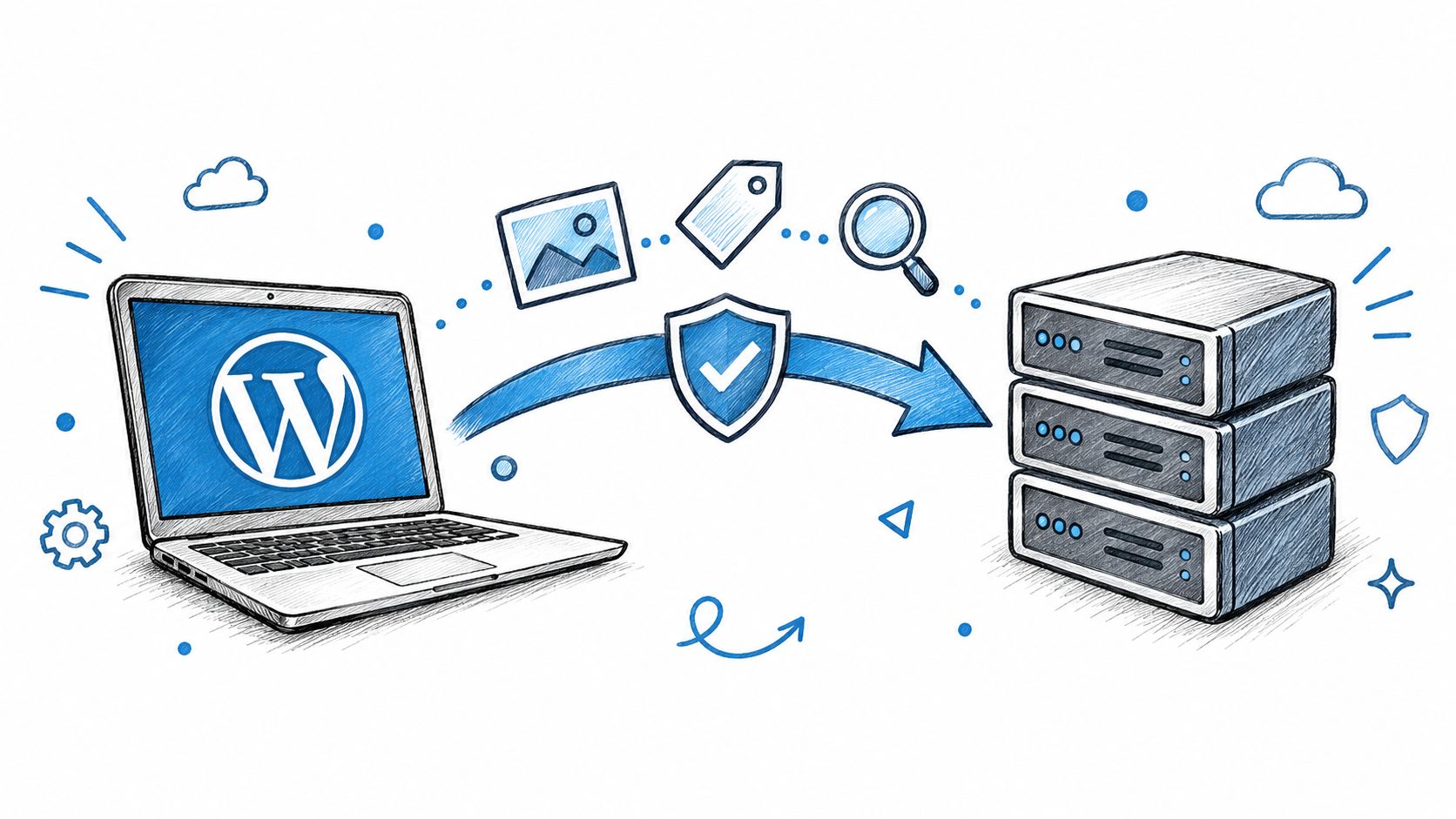
The move usually starts with a small frustration: the WordPress admin feels slow, another plugin needs attention, or the hosting bill keeps climbing. A blogger who wants a simpler home for posts, a newsletter, and memberships may find the current setup has become a collection of tools to maintain rather than a place to publish.
To migrate a WordPress blog safely, treat the move as a preservation task, not just an export and import. Success means proving that content, media, metadata, working links, and search signals made it to the new site, then monitoring for problems after launch.
Table of Contents
The Moment Most Bloggers Decide to Move
A typical breaking point isn't one dramatic failure. It's the accumulated friction: a post layout depends on a plugin that's no longer maintained, the editor takes too long to load, and a newsletter tool sits apart from the site with its own audience records and billing. Each part may work on its own, but publishing now means keeping several connections healthy.
That doesn't automatically make a move the right choice. A migration can trade familiar tools for new constraints, and a platform change can expose hidden dependencies in old posts. Before deciding, it helps to understand the real cost of running a WordPress blog and compare it with the cost, workflow, and portability of the destination.
WordPress migration has long been built around portable content. WordPress exports a site's content as an XML file in a format called WordPress eXtended RSS, or WXR, which gives publishers a way to move structured editorial data without tying it permanently to one server or database (WordPress export screen documentation).
A move isn't successful because the posts appear in a new dashboard. It's successful when readers, search engines, and the people publishing the site can still do what they came to do.
For publishers weighing hosting changes as well as platform changes, this guide for Australian businesses offers another perspective on planning a WordPress move. The practical question remains the same: what must be preserved, what can be retired, and how will anyone verify the result?
Build Your Pre-Migration Inventory First
An inventory turns migration from guesswork into a controlled job. Before opening the export tool, record what exists, where it lives, and which systems depend on it.
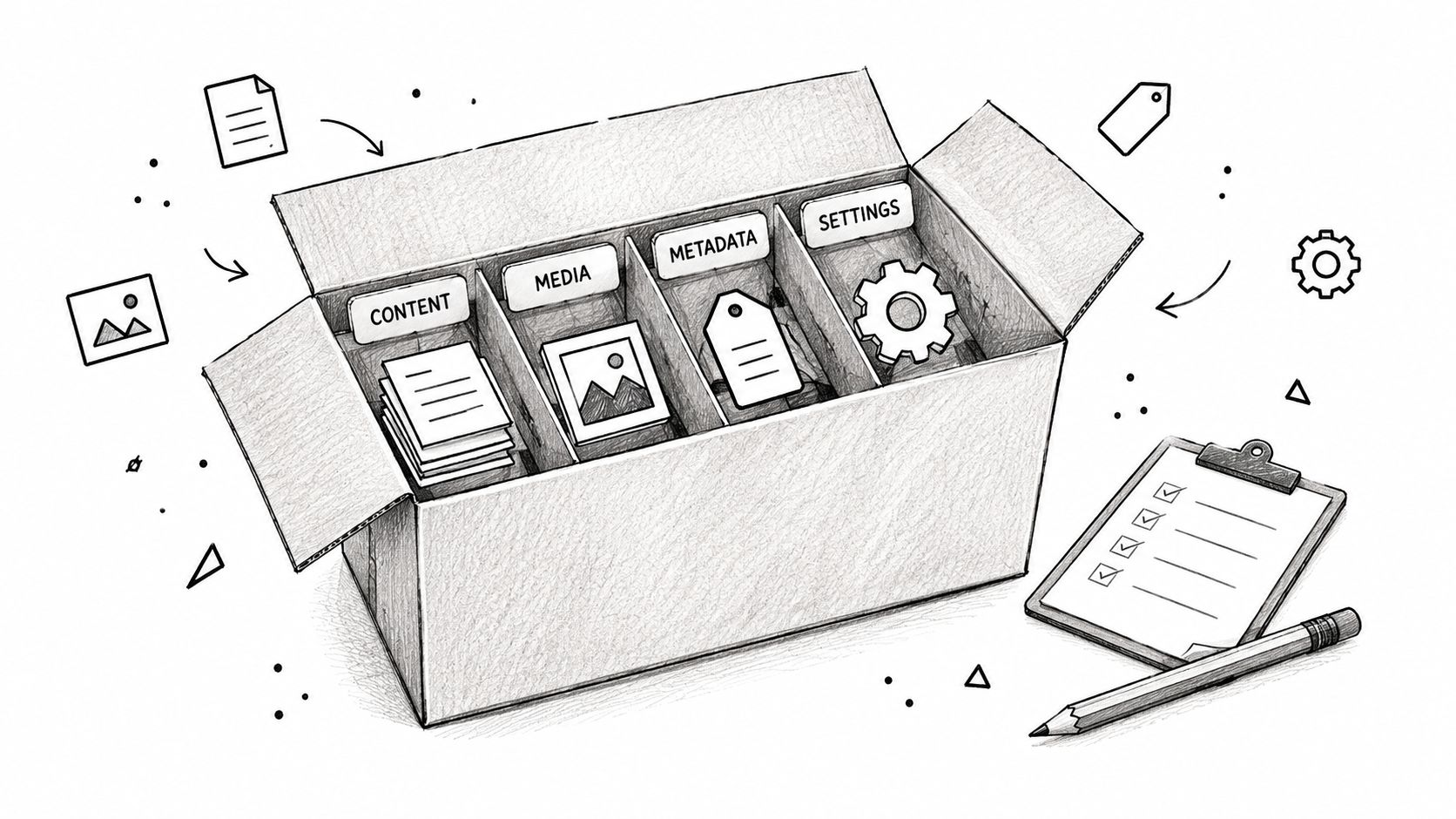
Record the content and media
Start with a content list that distinguishes ordinary posts and pages from custom post types, categories, tags, and other taxonomies. Note author names, publication dates, slugs, custom fields, and any posts that rely on shortcodes or plugin-specific blocks. Those details help reveal whether the destination can interpret the material or whether it needs a conversion plan.
Treat media as its own inventory. Record the files in the Media Library, but also identify where images and downloads are stored. Some sites serve media from external storage or use image-optimization tools that rewrite URLs. Unattached Media Library files may not travel in a standard XML export, so list important assets that do not appear in posts or pages.
List people, plugins, and connections
Record user accounts and roles, including administrators, authors, and contributors. Then list plugins and external integrations, such as email services, analytics, payment tools, forms, webhooks, and API connections. For each, note who owns the account and which credentials or callbacks will need to be replaced.
This exercise is also a security reset. Patchstack reported 11,334 new WordPress ecosystem vulnerabilities in 2025, a 42% year-over-year increase; 91% were in plugins, only six were in WordPress core, and 46% of reported vulnerabilities lacked a developer fix by public disclosure (Patchstack's WordPress security report). A migration won't remove risk if old administrator accounts, API keys, abandoned integrations, or unsafe uploads get copied forward.
For teams also moving hosting infrastructure, this overview of cloud migration strategies for 2026 can help frame the infrastructure side separately from content handling.
Keep the inventory usable rather than elaborate:
Content: post and page types, taxonomies, slugs, authors, metadata.
Media: attachment records, storage locations, important files outside posts.
Access: user accounts, roles, service credentials, connected accounts.
Dependencies: plugins, themes, forms, payment services, webhooks, and custom code.
Exporting Content, Media, and Metadata the Right Way
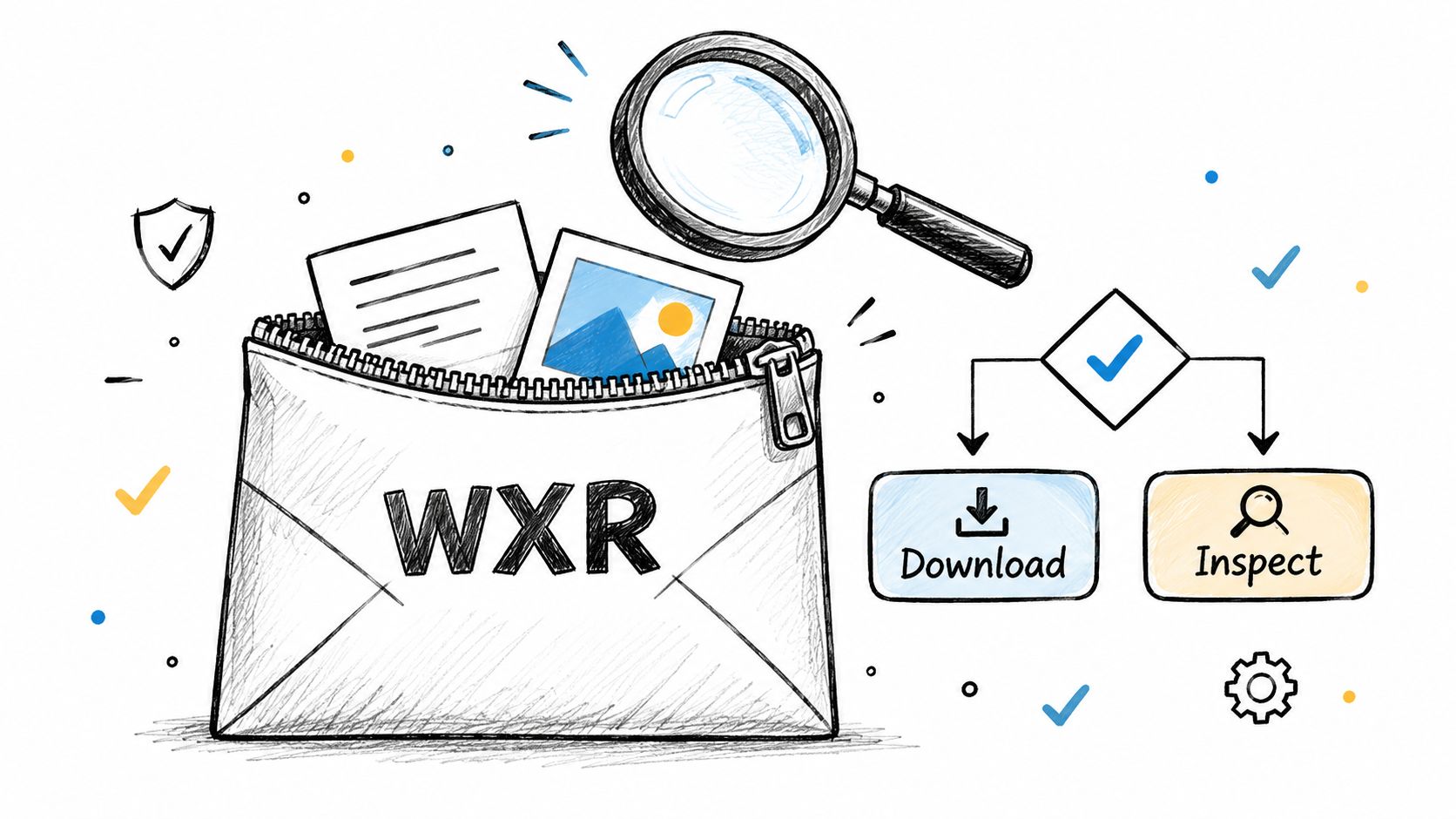
A WXR file is a structured content export, not a complete clone of a WordPress site. WordPress documentation says it contains posts, pages, custom post types, comments, custom fields, categories, tags, custom taxonomies, and users. It doesn't bring across the site's design, theme, or plugins, so those need their own plan (WordPress export screen documentation).
Export with the destination in mind
In WordPress, use Tools → Export and select the content you need. If the destination can accept the full export, a complete file is usually easier to reconcile than a set of narrow exports, but the right choice depends on the importer's format support and file-handling limits. Keep the original export unchanged as a reference copy.
Media needs separate attention. The XML contains references to media, not necessarily the original files themselves. When using the WordPress importer, select Download and import file attachments so it attempts to retrieve the referenced files. Don't assume this covers unattached files in the Media Library, or files that were served from a separate storage service. Compare those against the inventory and transfer missing assets separately.
Import into a staging site and inspect the result
Run the import on a staging copy of the destination, not the live site. During author mapping, decide whether to assign old posts to existing destination users or create corresponding accounts. Preserve original slugs and dates where the destination supports them, and inspect how it handles repeated imports so a test run won't create duplicate posts.
Custom fields and metadata require a compatibility check. The XML may contain them, but the destination still needs to recognize the field names and know where to store or display them. The same applies to shortcodes, embedded content, and plugin-specific blocks. A text body can import cleanly while losing a custom callout, product box, or layout that depended on the old theme.
Themes and plugins need their own migration decisions. If the original appearance matters, the destination needs an equivalent theme or a deliberate redesign. If the old site used plugins for forms or membership access, confirm the replacement behavior rather than expecting the WXR file to recreate it.
Treat the export as a package of structured editorial data. Check the package contents before deciding that the site has been moved.
Mapping URLs and Protecting Search Equity
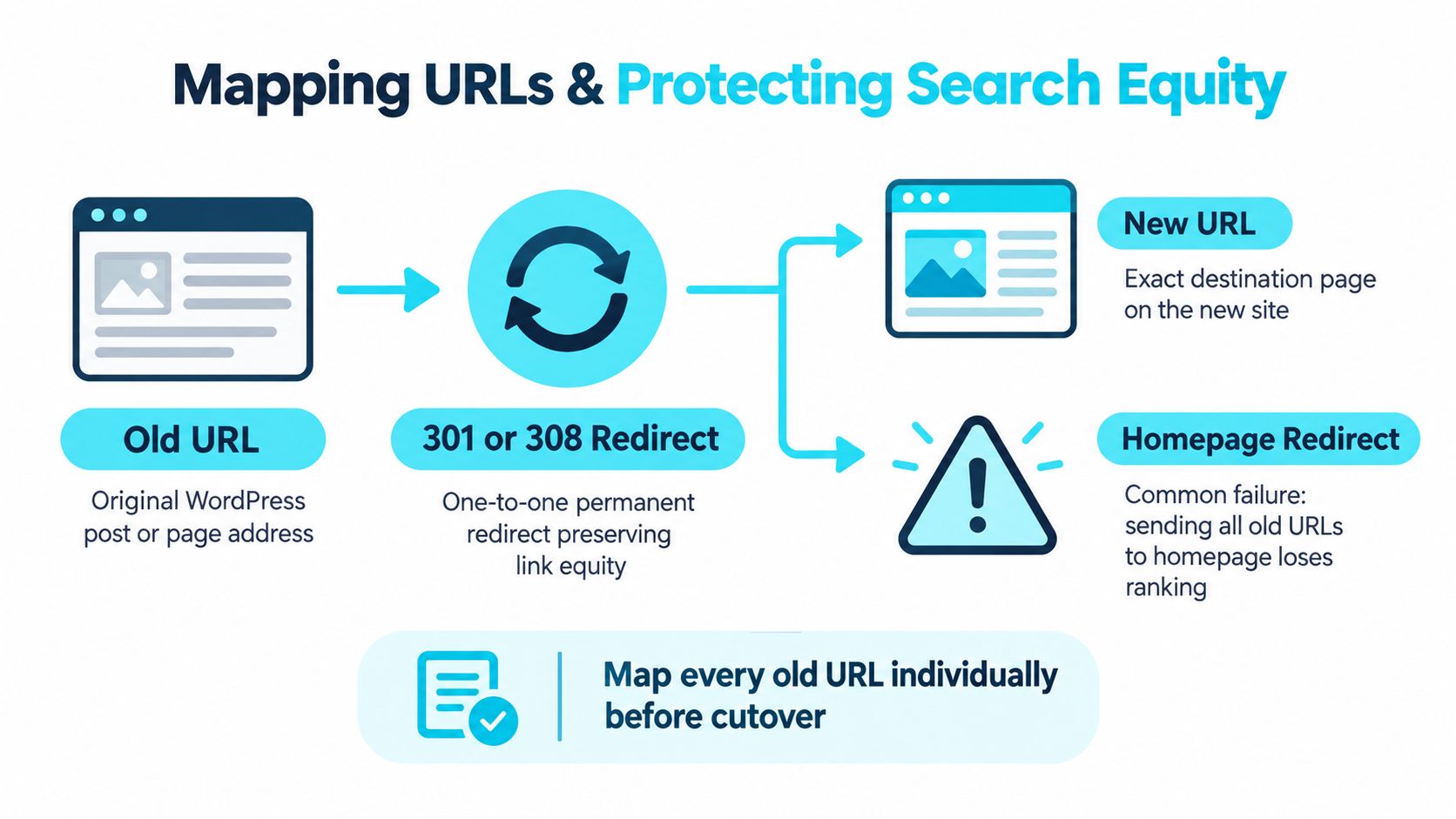
Content import and URL preservation are separate QA tracks. A post can exist on the new site while every old bookmark, external link, and search result points to an address that no longer works. The most useful protection is a version-controlled map that pairs each valuable old URL with its closest equivalent destination.
Build the old-URL list from more than a site crawl. Combine a production crawl with XML sitemaps, analytics landing pages, server logs, and Search Console data. A crawl can miss URLs that aren't linked internally; analytics and logs can expose pages that still receive visits or requests.
Map real equivalents, not just patterns
Create a one-to-one mapping wherever an equivalent page exists, then use server-side 301 or 308 redirects and test them before any DNS or domain cutover. Sending every old URL to the homepage is not a shortcut. It gives readers the wrong destination and can discard the relevance of the original page.
Include posts, pages, categories, tags, author archives, feeds, and attachment URLs in the route review. Don't stop at HTML: images and PDFs can have incoming links or search visibility of their own. Check how structured data and canonical URLs will be represented on the destination as well.
Google recommends preparing and thoroughly testing the new site, creating a URL map, using permanent server-side redirects, monitoring the old and new properties, submitting the new sitemap, and retaining redirects for at least one year (Google's site-move guidance). A practical guide for website replatforming can provide additional context on redirects and search considerations during a change.
The redirect map should be a file the team can review and update, not a set of rules nobody can explain. Test every mapped route, avoid chains, and return a 404 or 410 where no equivalent page exists. For platform-specific considerations, see this guidance on setting up 301 redirects when switching platforms.
Verifying the Staging Environment Before Cutover
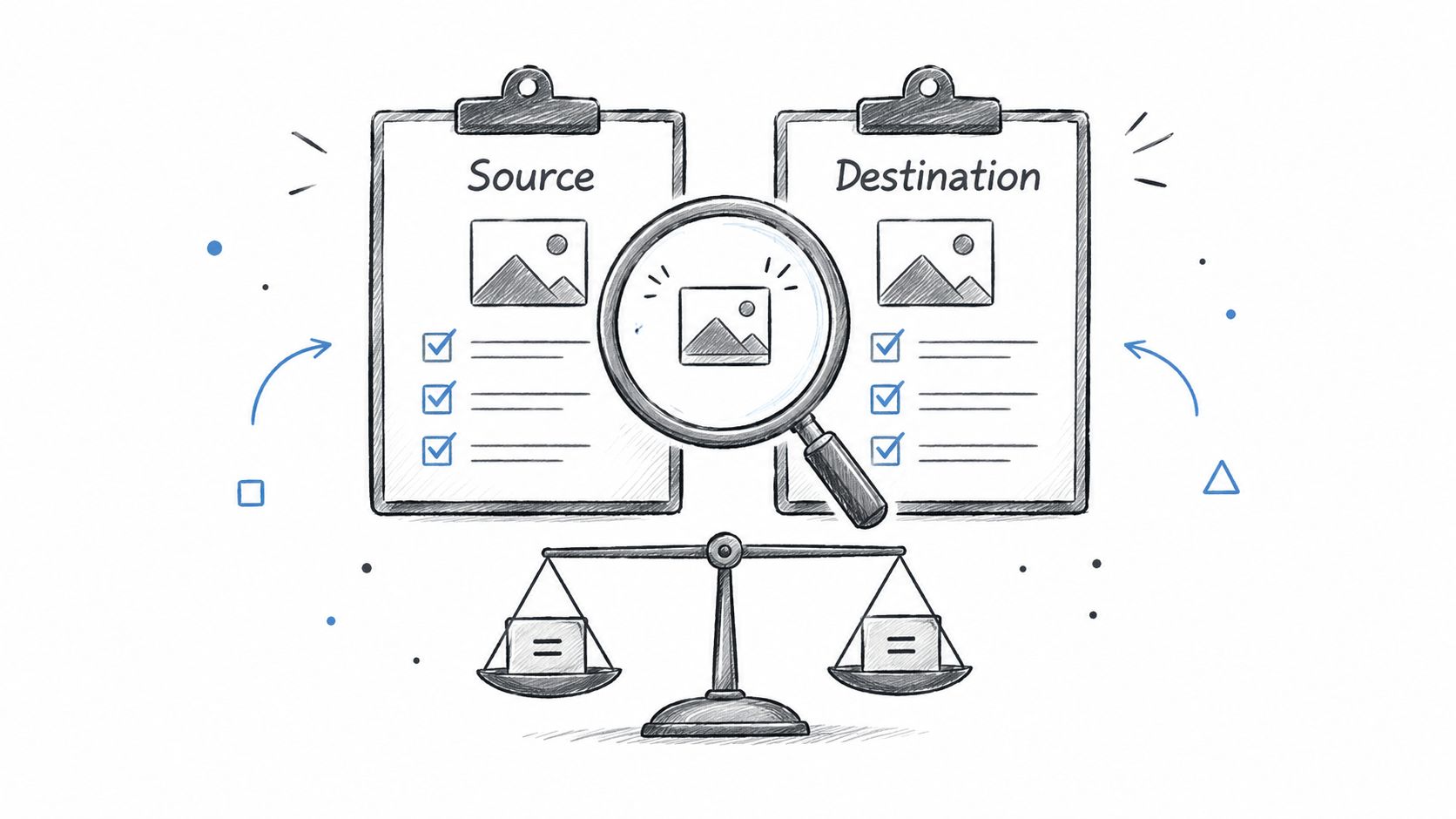
Staging is where a migration earns approval, not where someone glances at the homepage and calls it ready. Many damaging defects are omissions: missing attachments, rewritten image URLs, lost metadata, changed permalink patterns, indexed staging pages, or redirect chains.
Check the assets and the page output
Compare source and destination attachment counts, then inspect representative image URLs. Confirm the response status and content type, and check image dimensions, alt text, and whether posts point to the intended new storage paths. A file can exist in the destination while the article still references the old address.
Review a sample of posts across different formats and ages. Confirm the title, body, slug, date, author, custom fields, and metadata. Check canonical tags, structured data, pagination, internal links, search, forms, feeds, and access controls. A form that renders correctly but sends submissions to an old integration is still broken.
Make staging invisible to search engines
Check that staging requires access control or otherwise cannot be indexed. A staging copy left open to crawlers can create duplicate content and confuse which version should appear in search. Before launch, verify that production uses the correct indexability settings and that staging restrictions won't accidentally carry over.
Use a clear acceptance gate. No unexpected redirect loops, no staging-indexation directives on production, no critical orphan pages, and successful resolution of every high-value old URL in one hop. Those checks are more meaningful than an importer's completion message because they test what readers and crawlers will encounter.
Cutover Day and the First 90 Days
A green import status only confirms that an import process finished. It doesn't prove that search visibility, conversions, or everyday publishing survived the move. Search traffic can dip for a while after a site move, and how well it holds up depends heavily on how cleanly old URLs map to their new equivalents, so treat the weeks after launch as part of the migration rather than an afterthought.
On cutover, deploy and test redirects, switch the site over, and update internal links, canonicals, hreflang, robots.txt, XML sitemaps, analytics, and API or webhook endpoints. Keep a pre-migration baseline so the team can compare organic sessions, indexed-page counts, impressions, clicks, rankings, 404s, server errors, and conversions.
Use checkpoints, not a single launch-day verdict
At 24 hours, check availability, high-value redirects, crawl errors, and analytics collection. At 7 days, review indexed pages, impressions, clicks, and server logs for recurring failures. At 28 days, compare organic sessions, rankings, 404s, and conversions with the baseline. At 90 days, look for persistent URL loss or performance changes rather than treating every early fluctuation as permanent.
A temporary dip and an irreversible loss aren't the same problem. When a specific old URL keeps returning errors, receives no equivalent redirect, or disappears from the new sitemap, fix that route directly. Keep monitoring the old and new properties while search engines process the change.
Treat the Migration as a Reset, Not a Copy
The cleanest moves start with an inventory and finish with ongoing checks. Inventory, export, stage, redirect, cut over, monitor. Use the process to remove dead plugins, rotate credentials, retire abandoned integrations, and consolidate tools instead of carrying every old dependency forward.
A platform that combines content publishing, newsletters, and memberships can reduce the number of services a publisher needs to maintain, though the right choice depends on the workflow and export options that matter to the business. Before signing up anywhere, confirm what can be imported and what can be exported later. For plugin-specific planning, review what happens to WordPress plugins after migration.
Printable check: inventory content and dependencies; save the export; verify media and metadata in staging; test the URL map; confirm the live site's indexability; compare post-launch metrics against the baseline.
VeloCMS supports WordPress content migration and brings blogging, newsletters, memberships, and theming into one subscription. Every plan starts with a 14-day free trial, and there's no free plan. Visit VeloCMS to review whether its publishing setup fits the site's next chapter.